> For the complete documentation index, see [llms.txt](https://support.meetuma.ai/uma-knowledgebase/llms.txt). Markdown versions of documentation pages are available by appending `.md` to page URLs; this page is available as [Markdown](https://support.meetuma.ai/uma-knowledgebase/release-notes/web/2025/v3.2.5-3rd-december-2025.md).
# v3.2.5 - 3rd December 2025
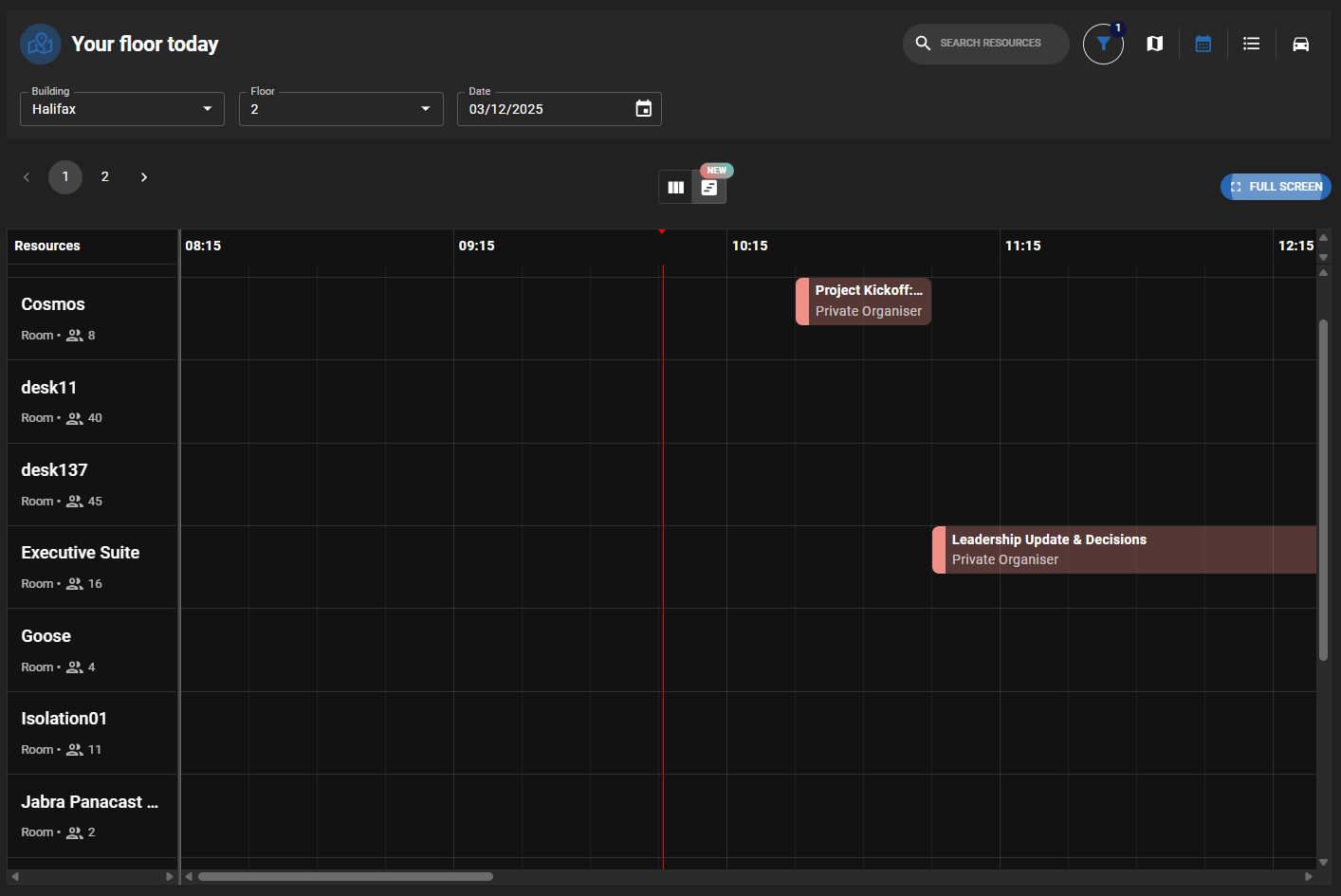
## Timeline view for resource availability
We’ve introduced a brand-new **Timeline View** in the Calendar section, giving you a clearer and more powerful way to visualise **resource availability side-by-side**.
This update makes it easier to plan meetings, compare space usage, and manage bookings at a glance — especially when working across multiple rooms, desks, or shared spaces.
***
#### What’s new
* **Create, edit, and delete bookings** directly from the timeline grid.
* **Hover and click** on any time slot to interact with it — creating new bookings has never been easier.
* **Full-screen mode** support for better visibility when managing multiple resources.
* **Filters** at the top of the page work seamlessly with the new timeline view.
***
#### Benefits
* View **multiple rooms or desks at once** for better scheduling insight.
* Quickly identify **free and busy times** without switching between resources.
* Faster **multi-resource booking** and comparison — ideal for office managers and facility teams.
* Fully aligned with your existing filters and building configurations.
***
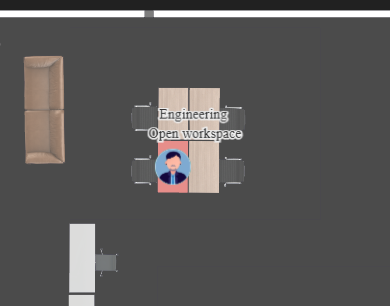
## User avatars on floor map bookings
We’ve introduced a new enhancement that makes it easier for users to understand their workspace location and manage bookings directly from the floor map.
#### What’s new
Users will now see their **own profile avatar displayed directly on any resources they’ve booked**—such as desks or meeting rooms—on the floor map.
* When a floor map loads, the system automatically checks for **active bookings for the selected date and time**.
* If a user has one or more bookings on that floor, an avatar (profile image or initials) appears on each booked resource.
Clicking your avatar will now:
* **Zoom in and center** the floor map on the booked resource
* Help you quickly locate your seat or room without manual search
***
## Table filtering for neighbourhoods & teams
### Search by resource name in neighbourhoods
Admins can now **filter the Neighbourhoods table by resource name**, making it simple to identify which neighbourhoods contain specific resources.
### Search by team member or manager name in teams
Admins can also quickly locate teams by searching for any **team member or manager name**.
***
## Resource amenities in calendar view
We’ve made a visual enhancement to the calendar view to help users quickly understand the amenities available for each resource.
#### Amenities Displayed as Icons
* Resource amenities now appear as **icons directly beneath the resource name, type, and capacity** on the calendar view.
***
## Bug fixes & stability improvements
This release includes important fixes related to calendar editing permissions, handling of multiple Office 365 identities (UPN vs primary email), and device settings visibility for Neat occupancy hardware.
### Fix 1 — Unable to edit events after changing organiser email
#### 📄 Issue
Microsoft 365 users were unable to edit existing events after the organiser’s email address was updated.
#### 🛠️ Resolution
We updated event-editing permission logic to correctly handle organiser email changes across Microsoft 365.
***
### Fix 2 — Bookings made with UPN differing from primary email bypass approval workflow
#### 📄 Issue
When an O365 user logged in via a **User Principal Name (UPN)** that differed from their **primary email address**, booking requests were not processed correctly. These bookings:
* Skipped the approval workflow
* Did not appear in **Manage → Requests** (Pending or Accepted)
* Did not send request emails to approvers
* Appeared as **auto-confirmed** to the requester
#### 🛠️ Resolution
We corrected the identity-mapping logic so UMA now properly associates UPN and primary emails across Office 365 environments. Approval workflows, request visibility, and notifications now behave correctly regardless of which identity the user logs in with.
***
### Fix 3 — Neat occupancy devices missing auto-book & release settings
#### 📄 Issue
Neat occupancy devices (all except **Neat Pad**) did not display **auto-book** or **auto-release** settings in the device settings panel. The settings page appeared blank.
#### 🧪 Steps to Reproduce
1. Connect Neat integration
2. Go to **Manage → Devices**
3. Click **Add Device**
4. Add a Neat device
5. Open the device and select **Settings**
#### 🛠️ Resolution
The settings panel for Neat occupancy devices has been corrected so all supported devices now properly show auto-book and release configuration options.
---
# Agent Instructions
This documentation is published with GitBook. GitBook is the documentation platform designed so that both humans and AI agents can read, navigate, and reason over technical content effectively. Learn more at gitbook.com.
## Querying This Documentation
If you need additional information that is not directly available in this page, you can query the documentation by asking a question.
Perform an HTTP GET request on the following URL with the `ask` and `goal` query parameters:
```
GET https://support.meetuma.ai/uma-knowledgebase/release-notes/web/2025/v3.2.5-3rd-december-2025.md?ask=&goal=
```
`ask` is the immediate question: it should be specific, self-contained, and written in natural language.
`goal` is what the user is ultimately trying to achieve, the reason they need the answer. Sharing it helps GitBook give you a better, more relevant answer. A goal is most helpful when it describes the outcome the user wants rather than restating the question. For example, with `ask=how do I create an API token`, a goal like `automate deployments from our CI pipeline` lets GitBook tailor the answer to that use case.
The response will contain a direct answer to the question and relevant excerpts and sources from the documentation.
Use this mechanism when the answer is not explicitly present in the current page, you need clarification or additional context, or you want to retrieve related documentation sections.